Withdrawals / Pintu IDR
Withdraw to IDR via Pintu
Teleport officially supports withdrawals to Indonesian Rupiah (IDR) through Pintu. This guide walks you through the entire process — from installing the app to receiving IDR in your bank account.
What is Pintu?
Pintu is a regulated Indonesian crypto exchange registered with Bappebti. It lets you buy, sell, and withdraw crypto to IDR directly to local bank accounts (BCA, Mandiri, BNI, Permata, etc.).
Step 1
Download Pintu
Install the Pintu app on your phone. Available on iOS and Android.
Search for Pintu in your app store
Open Google Play or the App Store and search for Pintu. Look for Pintu Trading Crypto & Futures by Pintu Crypto.
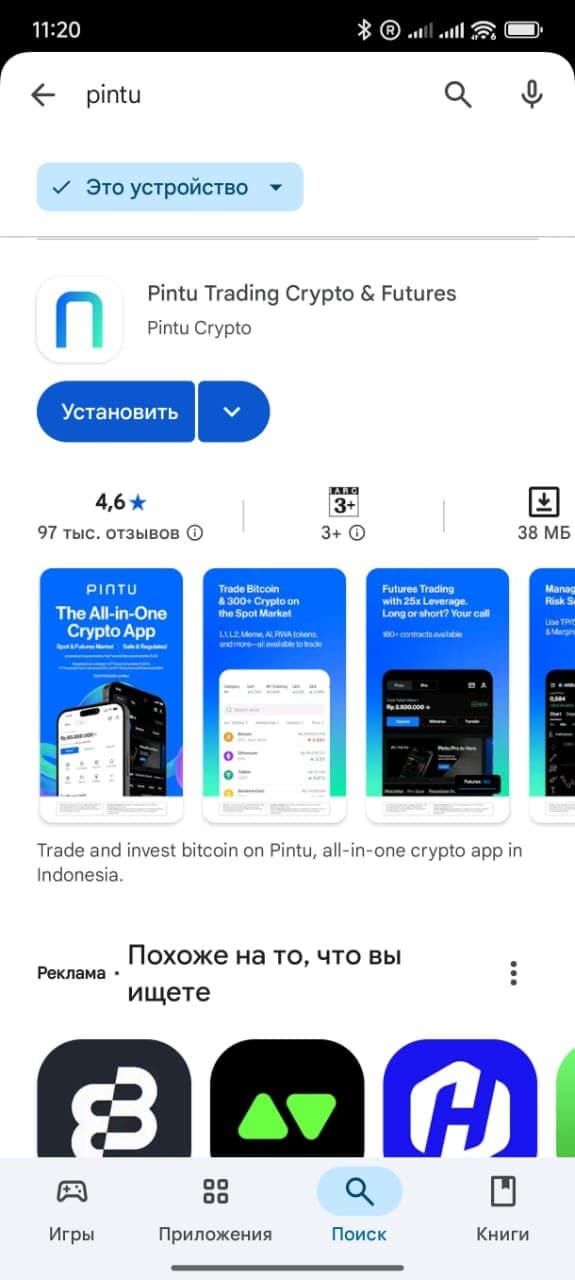
Install the app
Tap Install / Get and wait for the download — or scan the QR code with your phone camera.

Step 2
Register & set up
Create your Pintu account, set up security, and link it to Teleport.
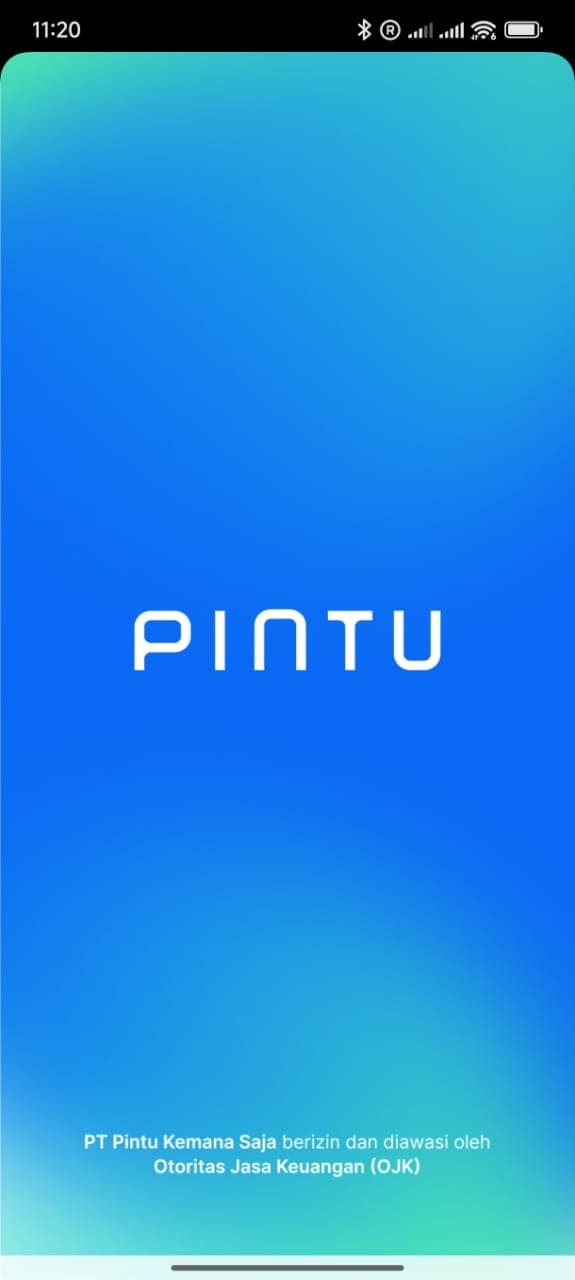
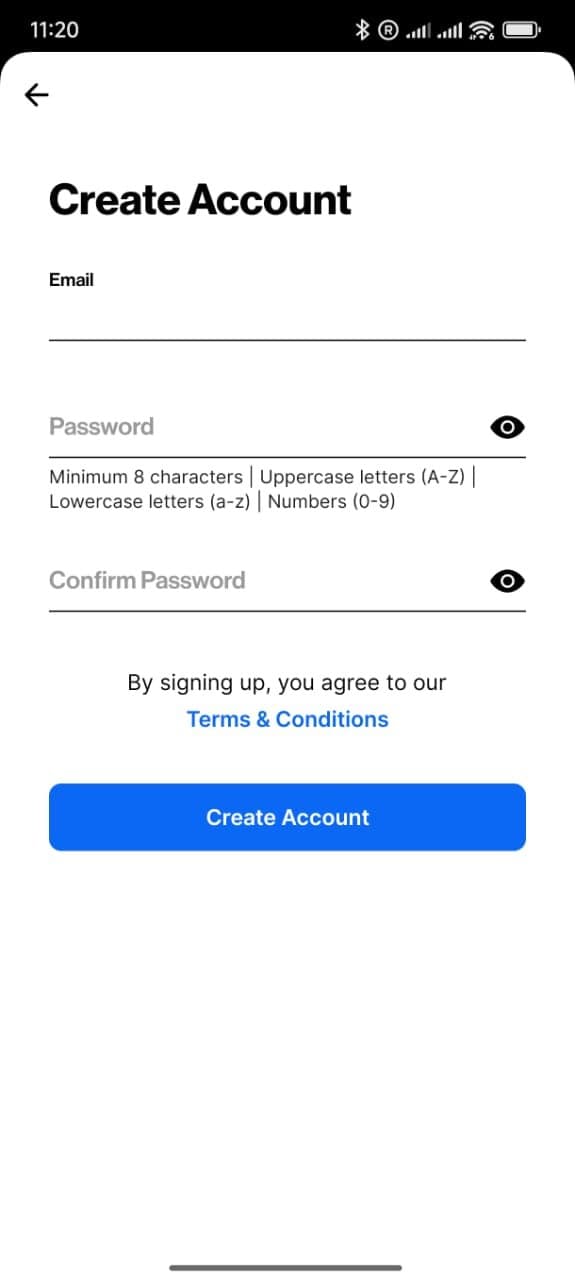
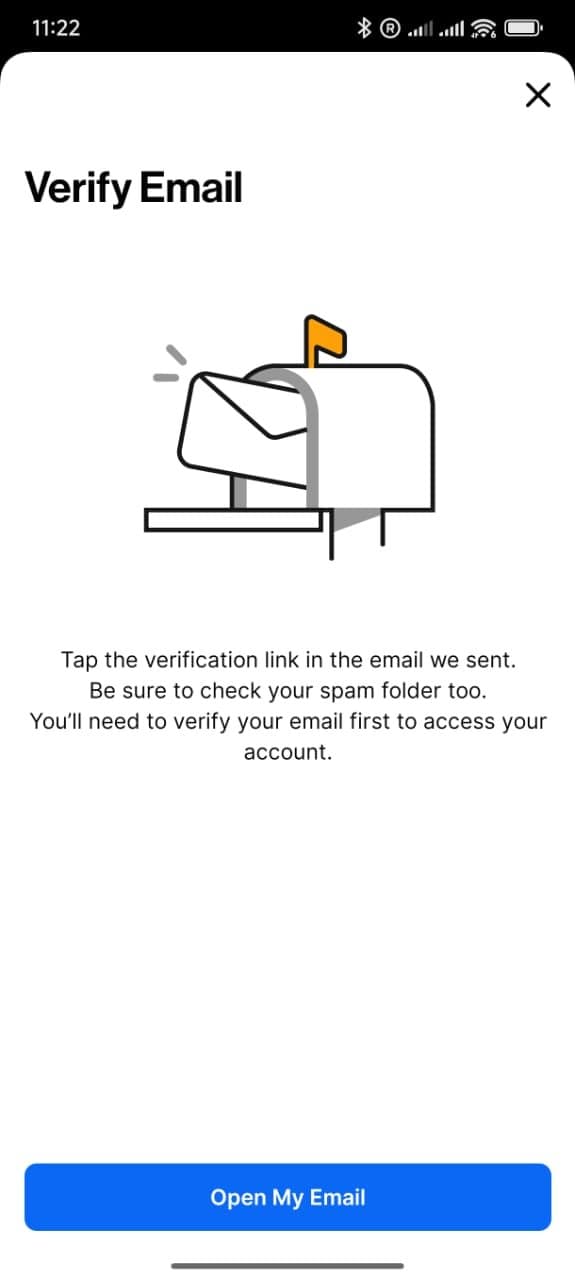
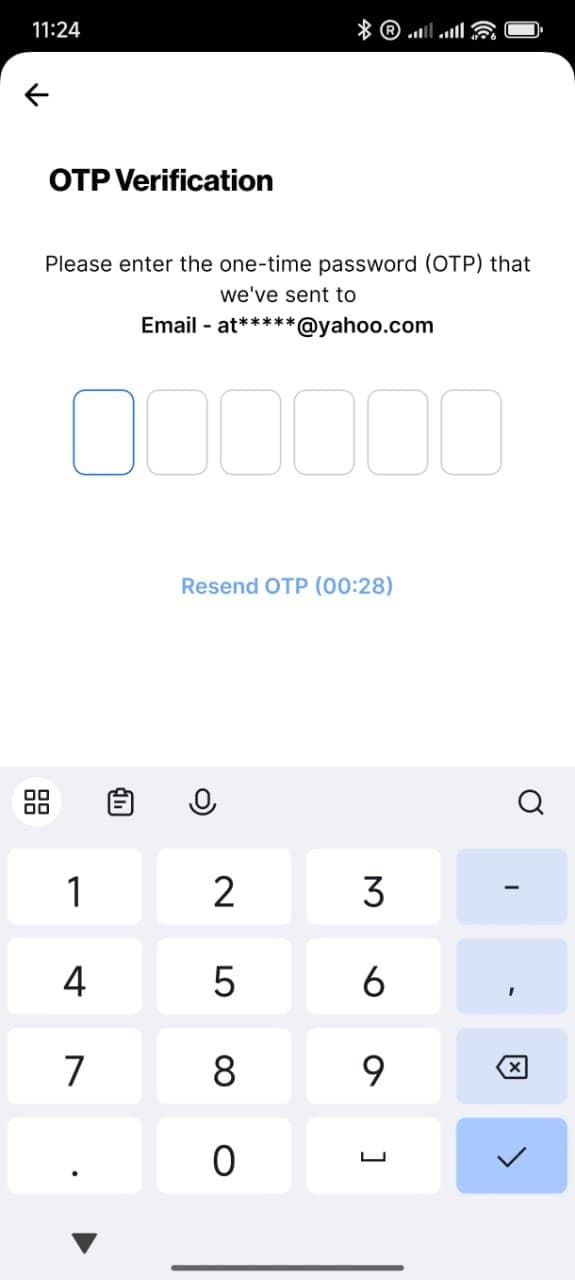
Launch, sign up, verify email
Open Pintu — tap Sign Up, enter email and password (min. 8 characters, mixed case and a number), accept the Terms. Verify your email via the link, then enter the 6-digit OTP.
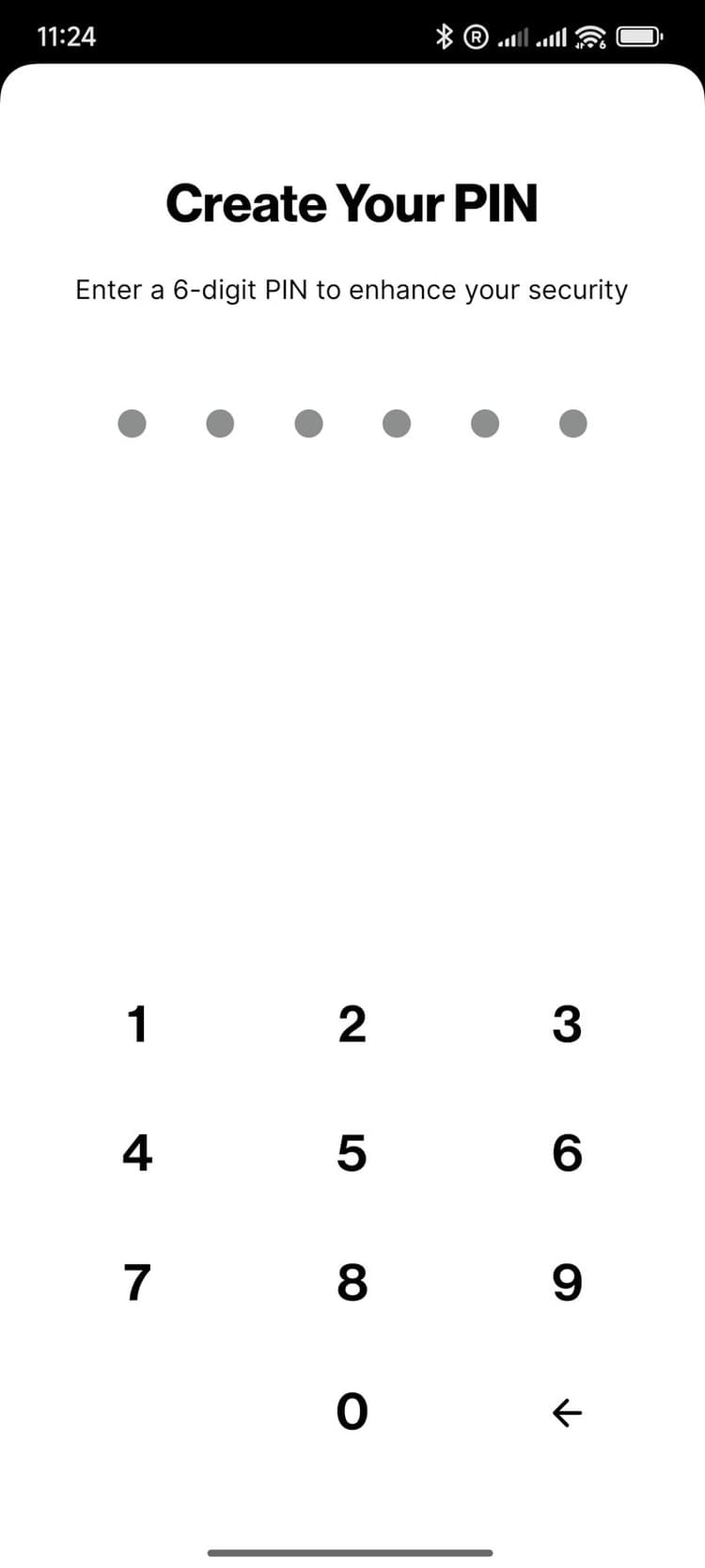
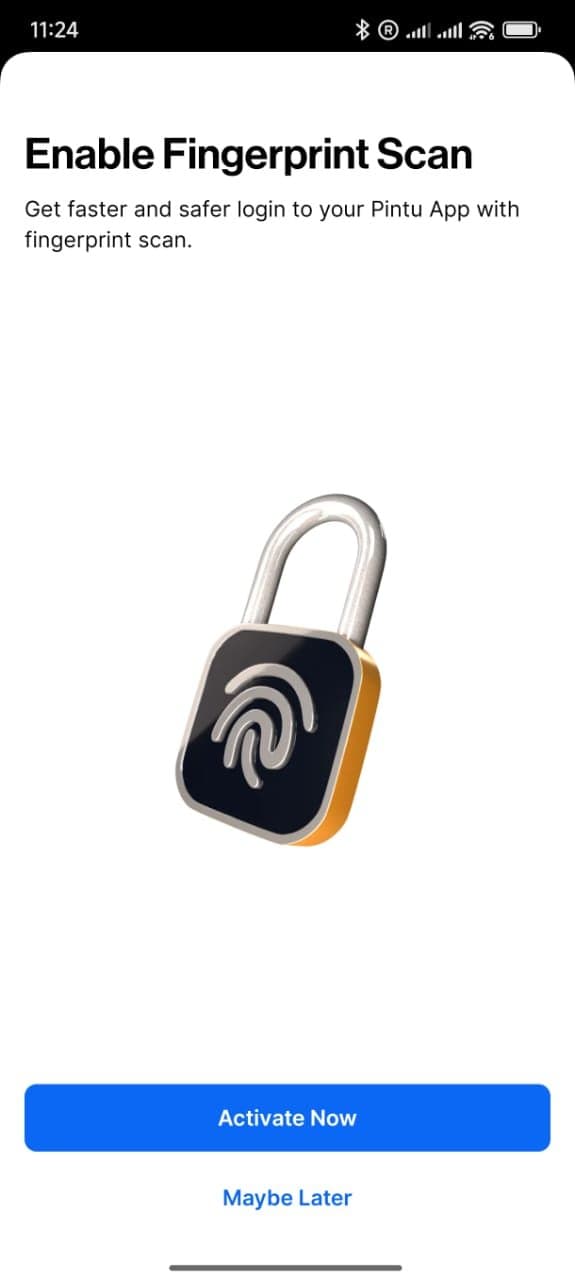
Set up PIN and biometrics
Create a 6-digit PIN and enable Fingerprint / Face ID.
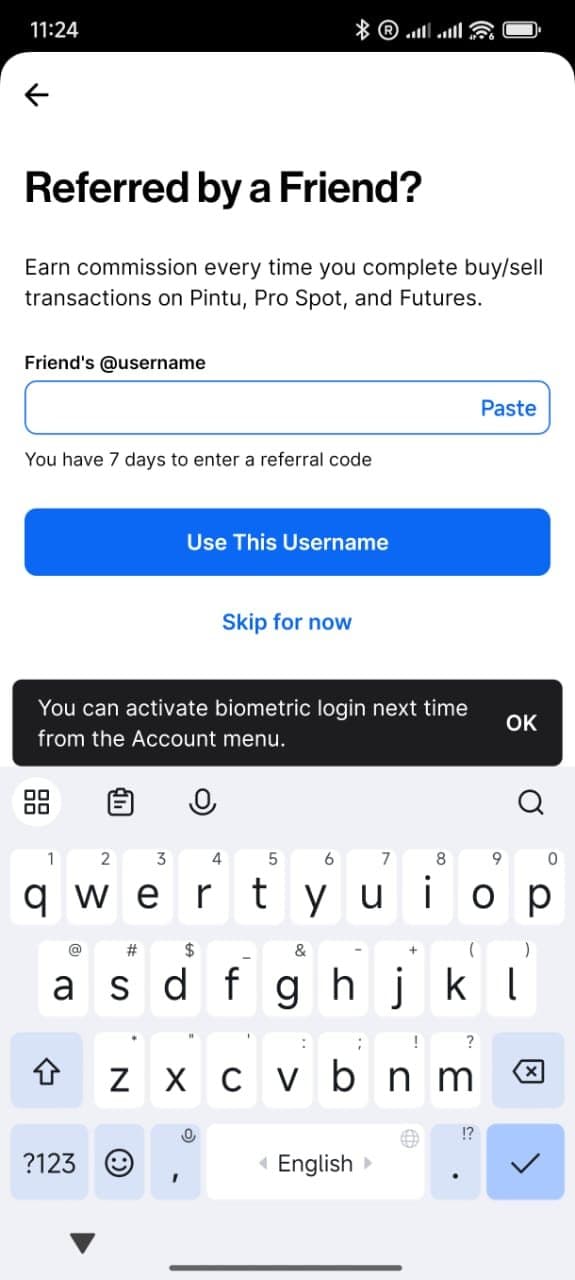
Referral username (optional), then share your @username
On the “Referred by a Friend?” screen you can enter @teleport and tap Use This Username. This step is optional.
Your personal Pintu handle is shown at the top of the in-app menu (tap the profile icon). This @username is the address that receives funds from Teleport. Copy it and send it to your Teleport manager.

Step 3
Verify your account (KYC)
Pintu requires identity verification. Foreign residents use passport + KITAS.
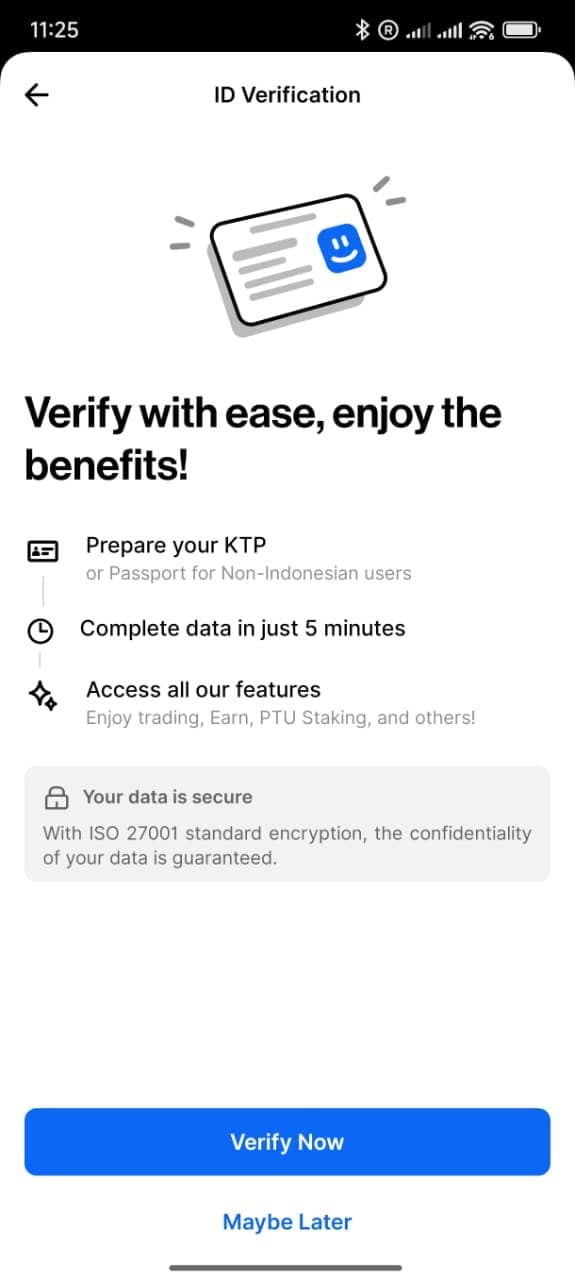
Start verification, enter phone, select nationality
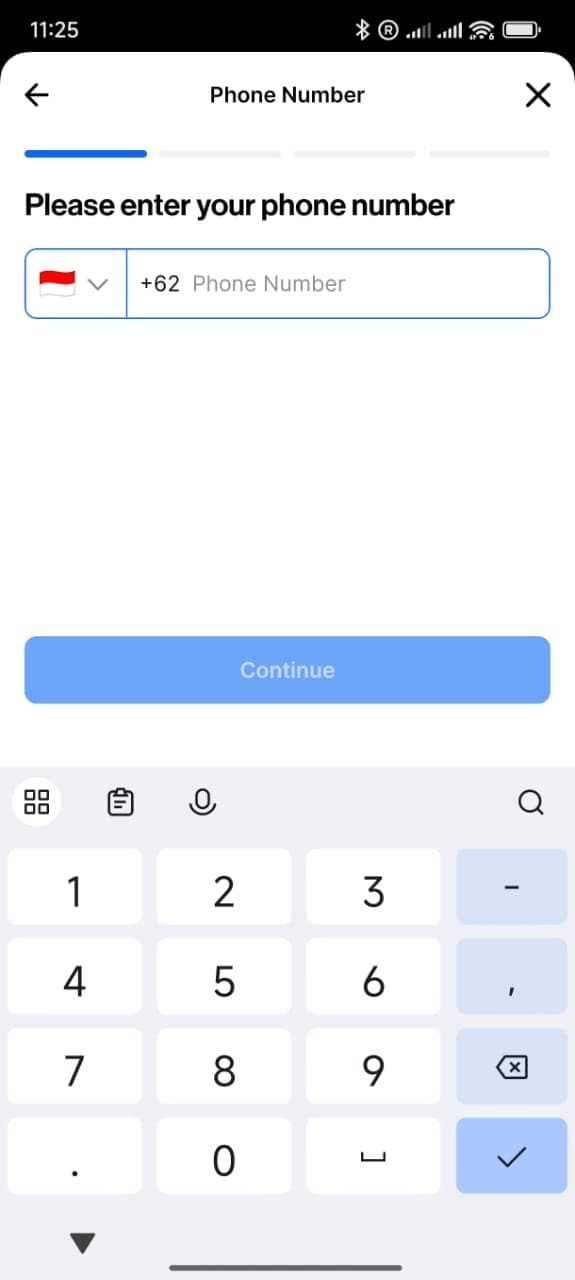
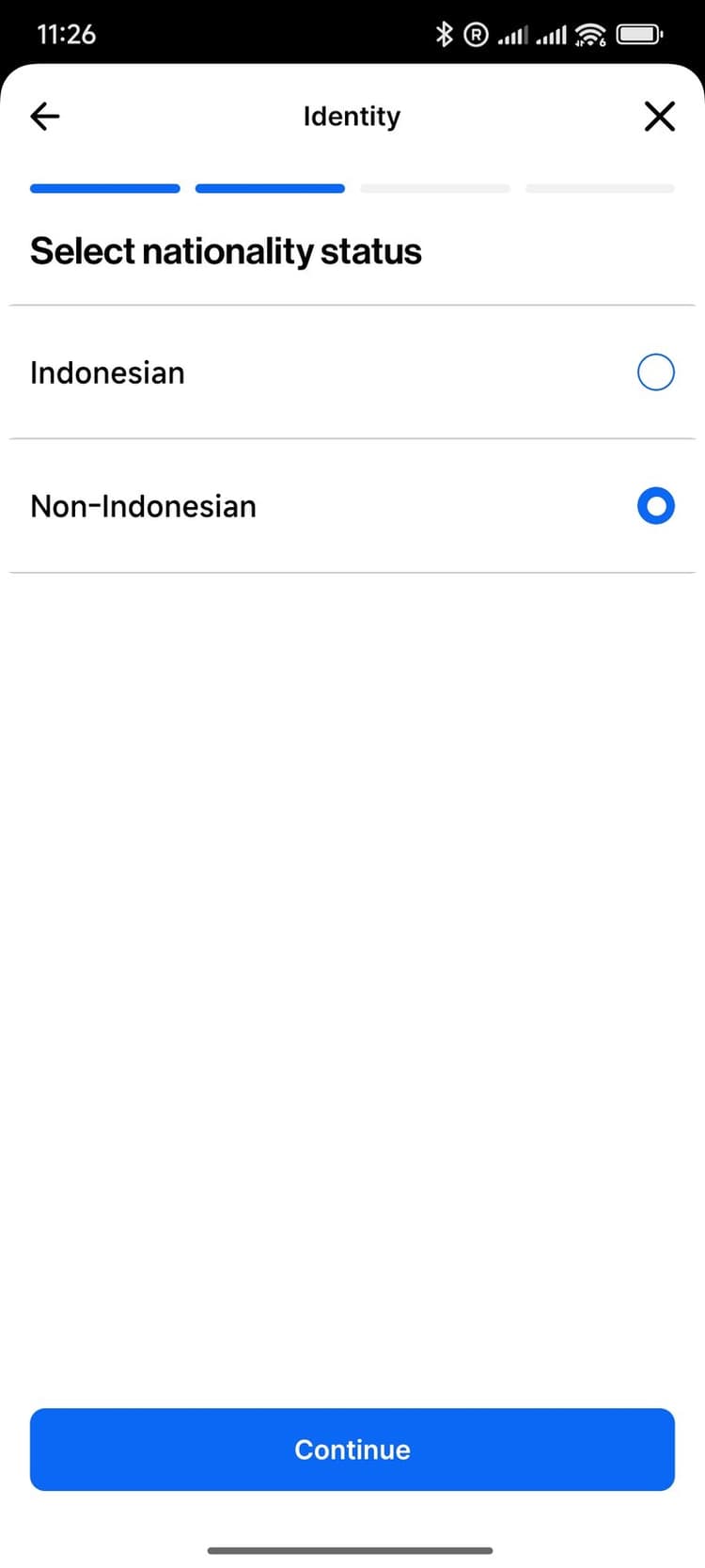
Have your passport + KITAS ready. Tap Verify Now, enter your phone (+62 by default), receive the SMS OTP. Select Non-Indonesian if you are a foreign resident.
Upload passport
Take a photo of the passport photo page, then a selfie holding the passport for the liveness check.
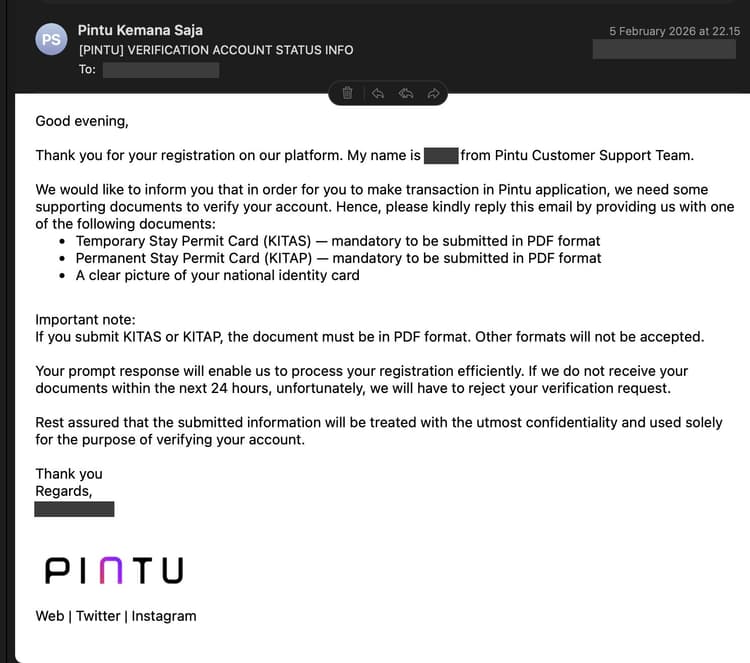
Reply to the Pintu CS email with KITAS / KITAP
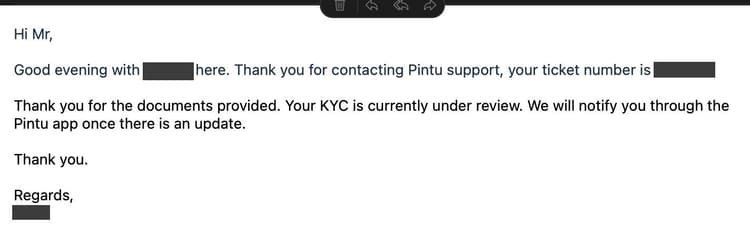
Pintu does not accept KITAS in the app. Their CS team will email you asking for the document as a PDF — KITAS or KITAP, plus a clear picture of your national identity card.
Reply within 24 hours — otherwise Pintu rejects the submission.
KYC under review
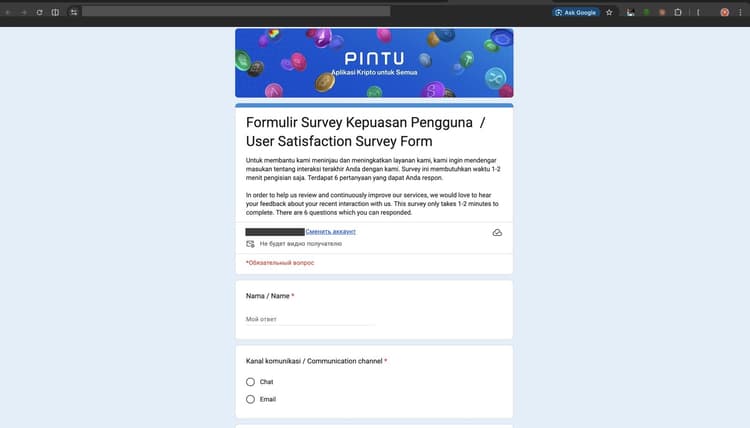
Pintu replies with a ticket number and confirmation. You'll be notified when approved. An optional satisfaction survey may follow — it's not required. Most KYC reviews complete within a few hours (up to 1 business day).
Step 4
Source of funds
Indonesian regulations (OJK) require Pintu to record where your money comes from.
Complete the questionnaire
Pintu support may ask you to fill this out after your first withdrawal — this is normal. Indicate that this is your income earned outside of Indonesia.
- Primary source of funds — select Salary / Employment income.
- Monthly income range — pick the bracket matching your deposits.
- Purpose of using Pintu — e.g. “Receive payments”.
You can update these later from Account → Personal Data → Source of Funds.
Step 5
Add your bank account
Link an Indonesian bank account. The account must be in your name.
Withdraw → Add Bank Account
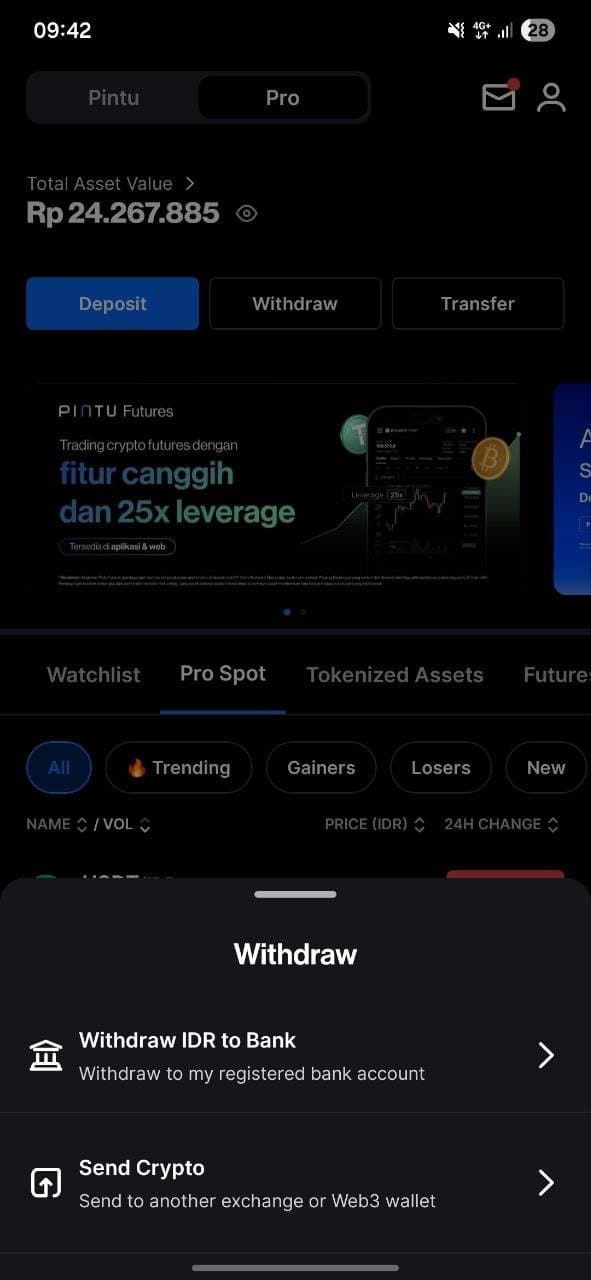
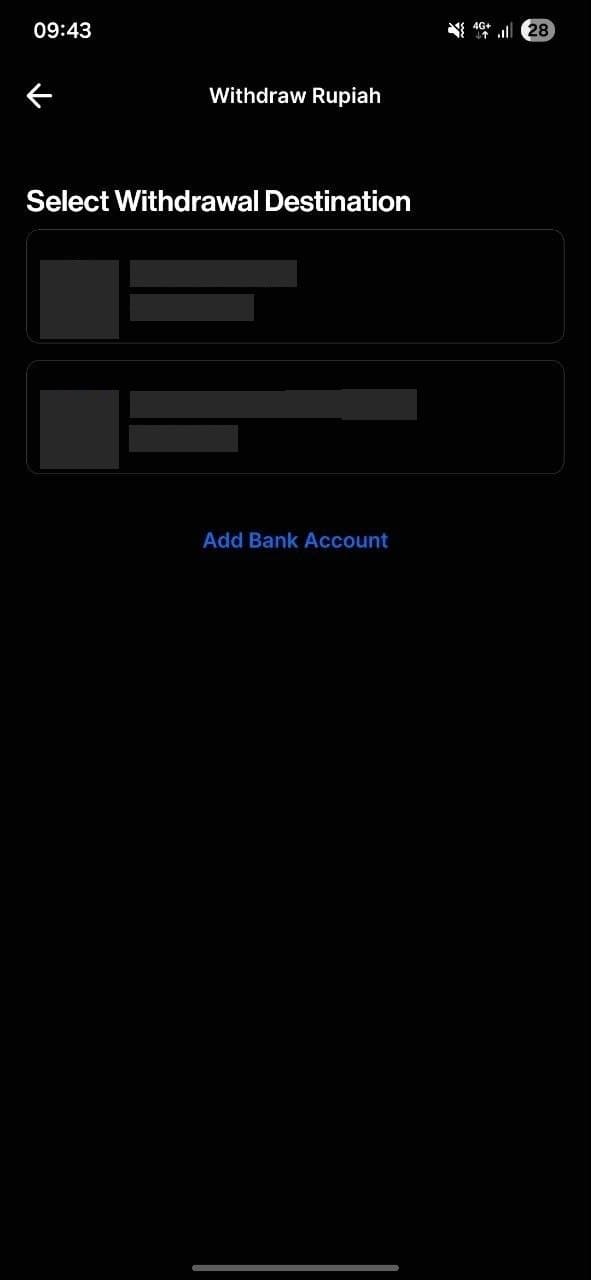
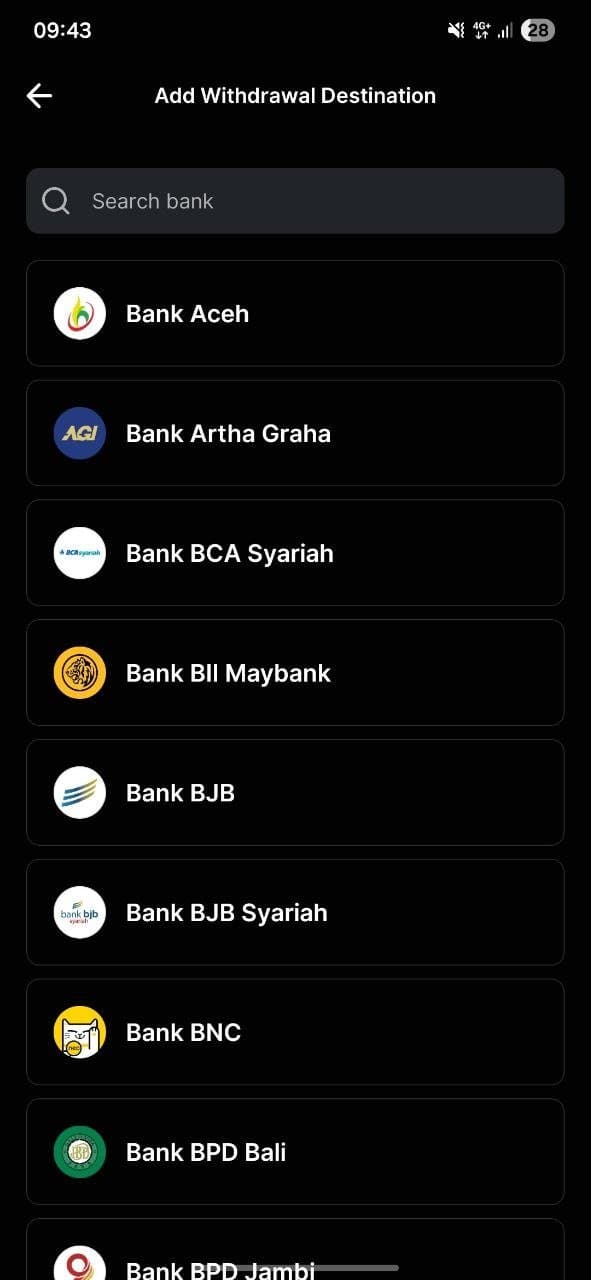
From the home screen, tap Withdraw → Withdraw IDR to Bank. Tap Add Bank Account.
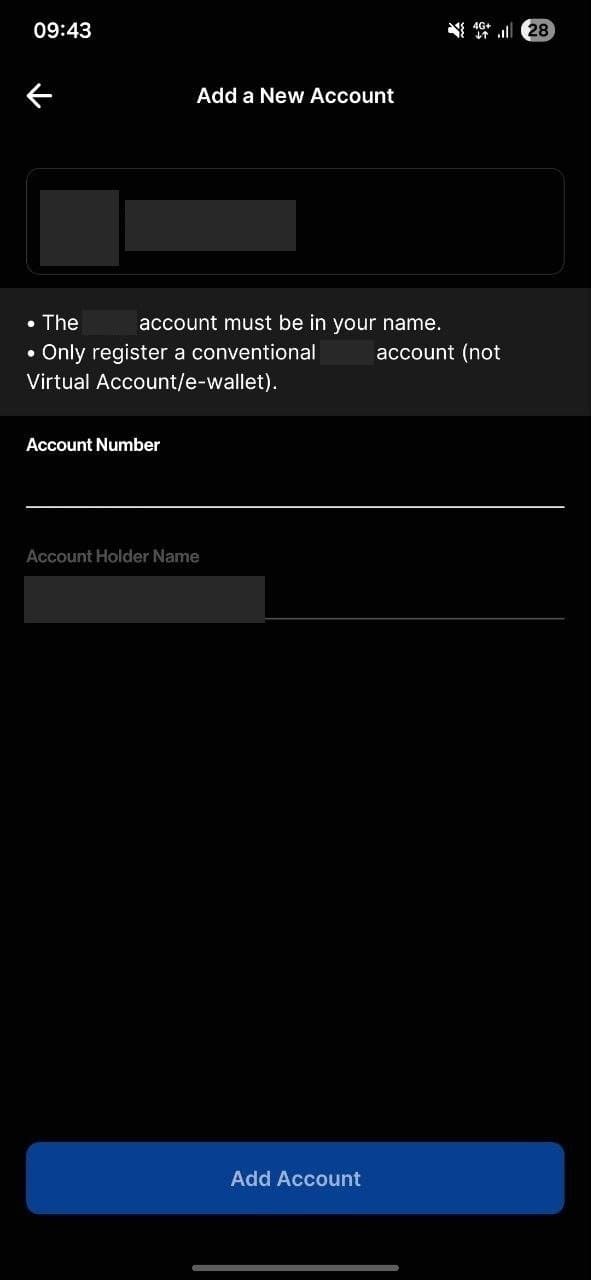
Choose bank and enter account number
Search for your bank and tap it. Account Holder Name is auto-filled from KYC and must match your bank account. Tap Add Account.
Only conventional bank accounts — no Virtual Accounts or e-wallets. The account must be in your own name.
Step 6
Withdraw IDR to your bank
Once your bank is linked, withdrawing IDR takes just a few taps.
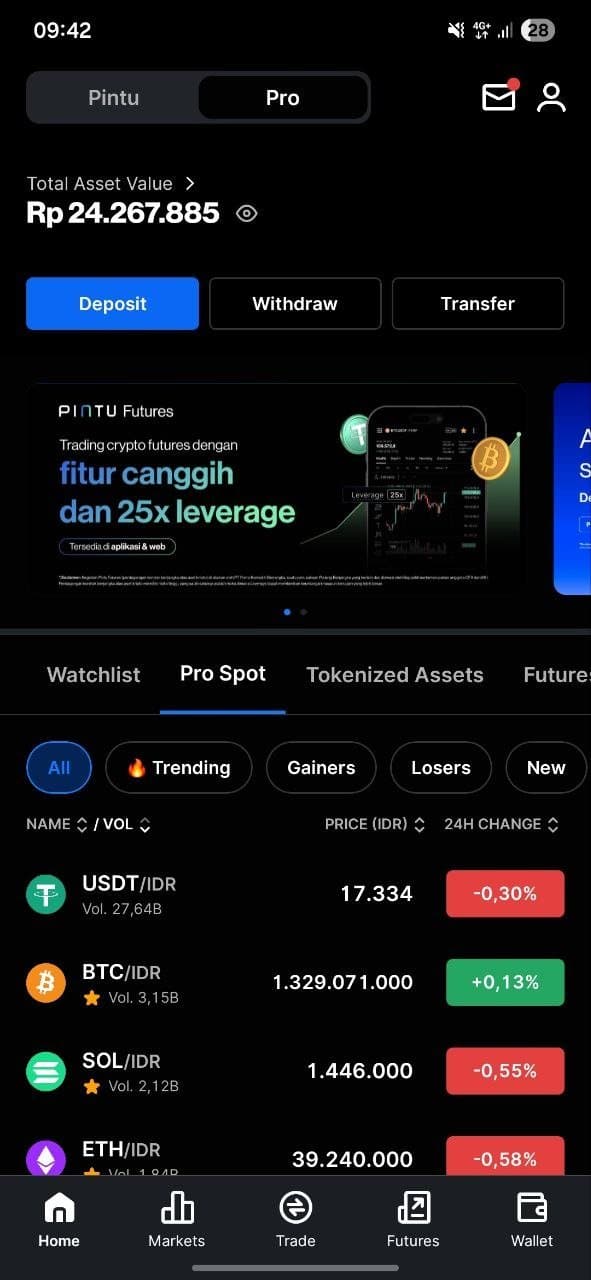
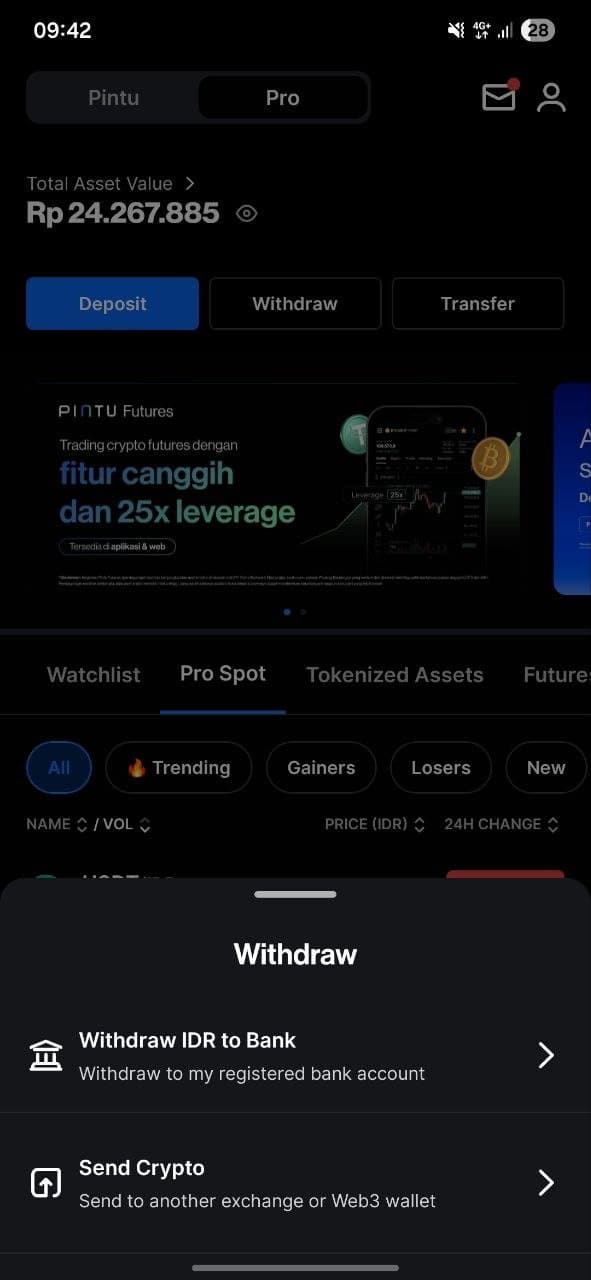
Tap Withdraw → Withdraw IDR to Bank
From the home screen tap Withdraw, then choose Withdraw IDR to Bank.
Select bank, enter amount, confirm
Pick your linked bank account and enter the amount. Pintu shows the full breakdown: destination, recipient, withdrawal amount, fee (e.g. Rp 4.500), and net amount. If everything is correct, tap Withdraw Now and confirm with your 6-digit PIN or biometrics.
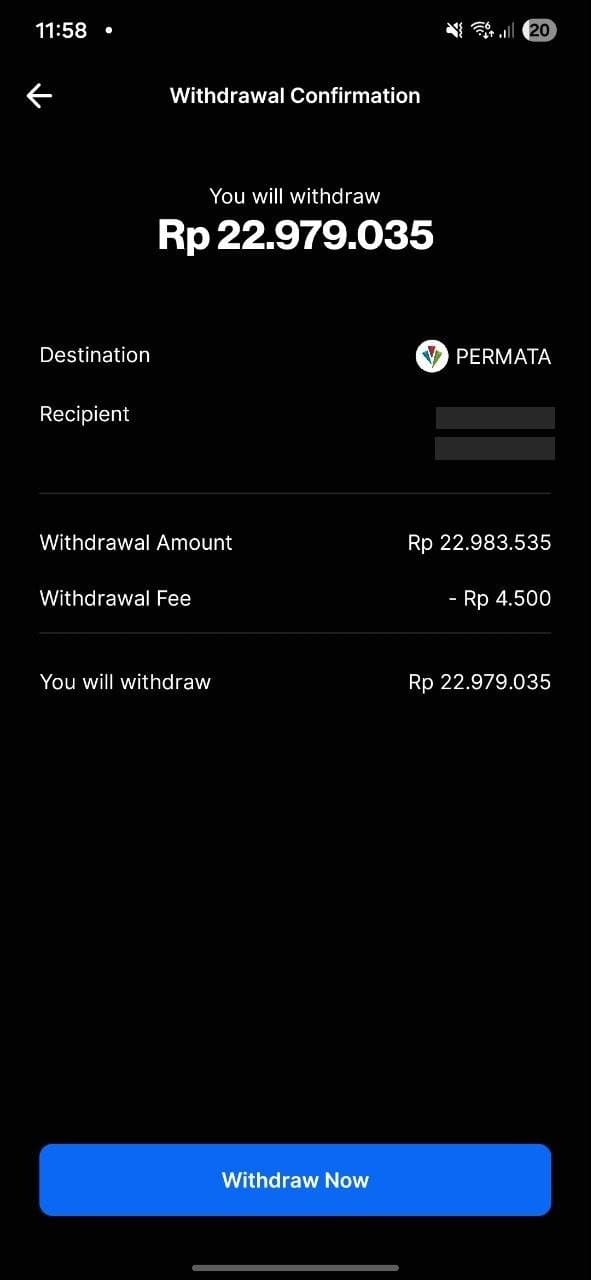
Withdrawal in progress — money on the way
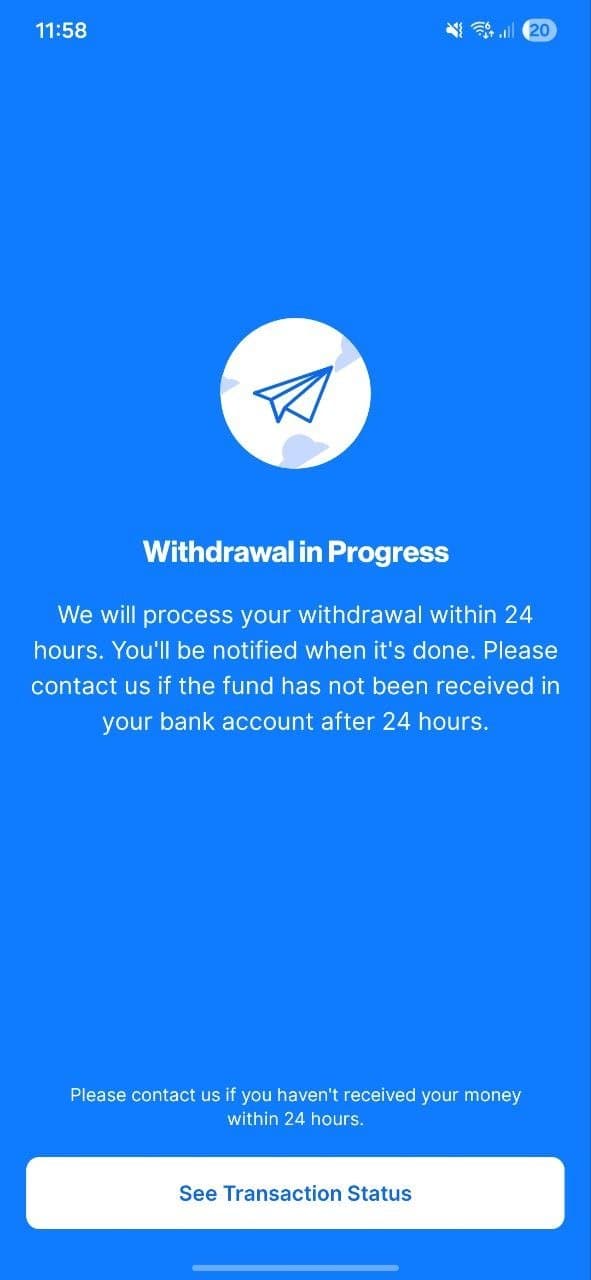
A confirmation screen appears — Pintu will process your withdrawal within 24 hours. Tap See Transaction Status to track it. Most BCA / Mandiri / Permata transfers land within minutes; other banks up to 1 business day.
If the money doesn't arrive within 24 hours, contact Pintu support via email and reference the transaction status.
Fee summary
- Teleport → Pintu transfer
- Via @username (internal)
- Pintu IDR bank withdrawal
- Free / low fee
- Processing time
- Minutes to 1 business day
- Supported banks
- BCA, Mandiri, BNI, BRI, Permata and more
KYC first. Complete verification before requesting a Teleport payout. The bank account name must exactly match your passport or KITAS. During registration you can optionally enter @teleport as the referral username.
Simpler option: direct bank transfer in IDR
You can also withdraw IDR directly to your Indonesian bank account via bank transfer from Teleport — without using Pintu. This is the simplest option if you just need money in your bank.
Need help? Contact us via Telegram @teleport_gate.