How it works · You pay employees or contractors
Company
The company path is two checks, a contract, and money on the balance. Until the checks pass, the account stays closed; until a signed contract exists, the balance cannot be funded. After that it moves quickly: invite people and file a payout.
Steps
10 steps
Step 01
Sign up
Where: payroll.teleport.ltd/register
- What you do
- Fill in the form: company, country, your name, email, phone. Choose a password. A code arrives by email — enter it.
- What happens on our side
- We create the account with the status “awaiting review” and tell a manager about the new registration.
What this unlocks. The company questionnaire opens. The rest of the account stays closed — there is nothing to do in it until we know who you are.
Worth knowing. The code expires. If it has not arrived, check the spam folder first — that is where it usually is; the resend button is on the same page.
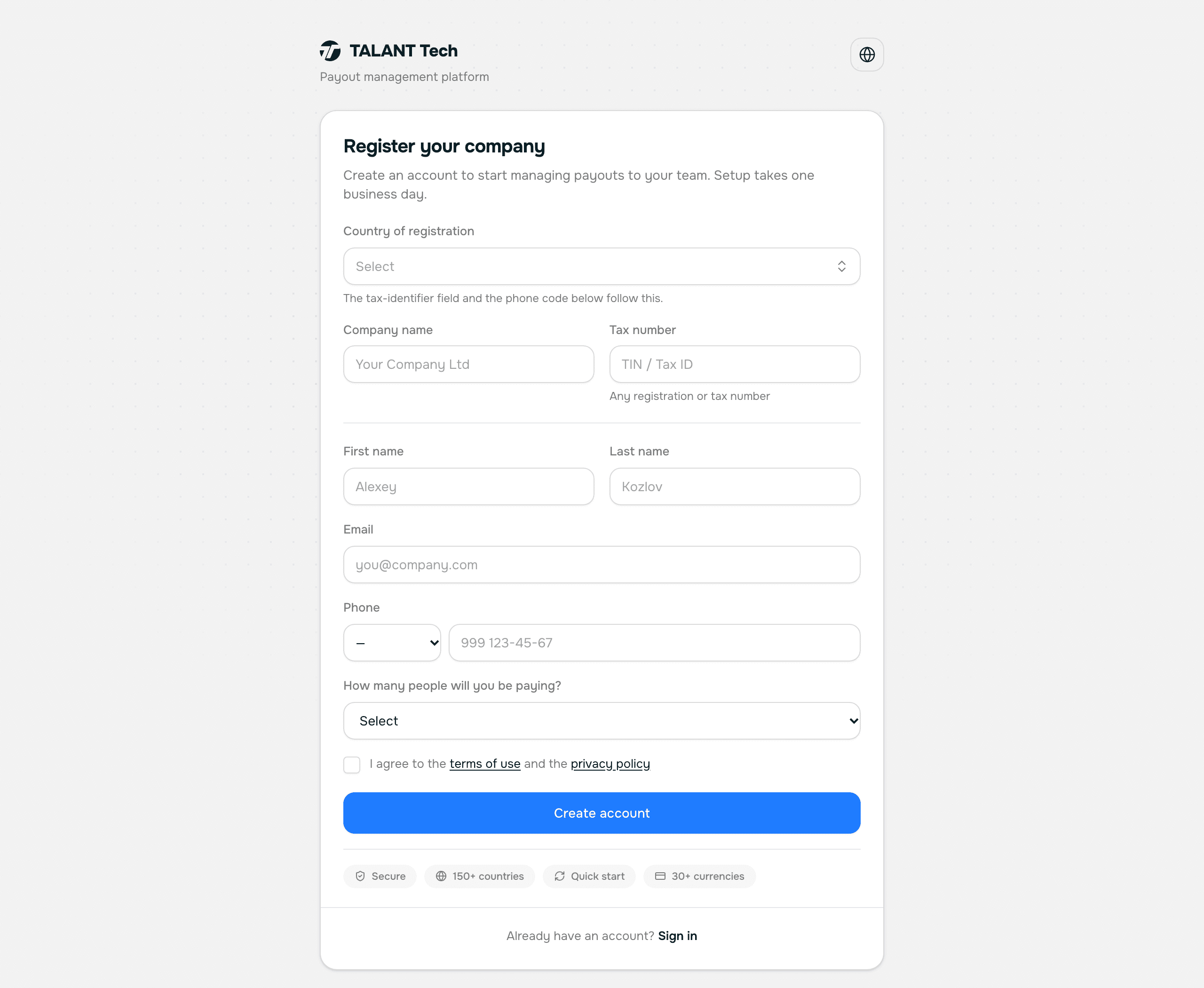
The sign-up form — Screenshot of this screen Step 02
Company questionnaire
Where: payroll.teleport.ltd/account/kyb
- What you do
- Describe what the company does, its legal name, tax and registration numbers, address, and who signs contracts and on what authority. Attach the charter and a registry extract if you have them.
- What happens on our side
- We check the details against the registry and against your own site, and confirm the company exists and does what it says. Usually answered the same working day.
What this unlocks. Identity verification of the signatory — it is on the same page and can be started straight away, without waiting for our answer on the questionnaire.
Worth knowing. The “what the company does” field is the most important one here. A bank will ask about it later, and the more specific you are now the fewer questions there will be then. “We provide services” is not an answer.
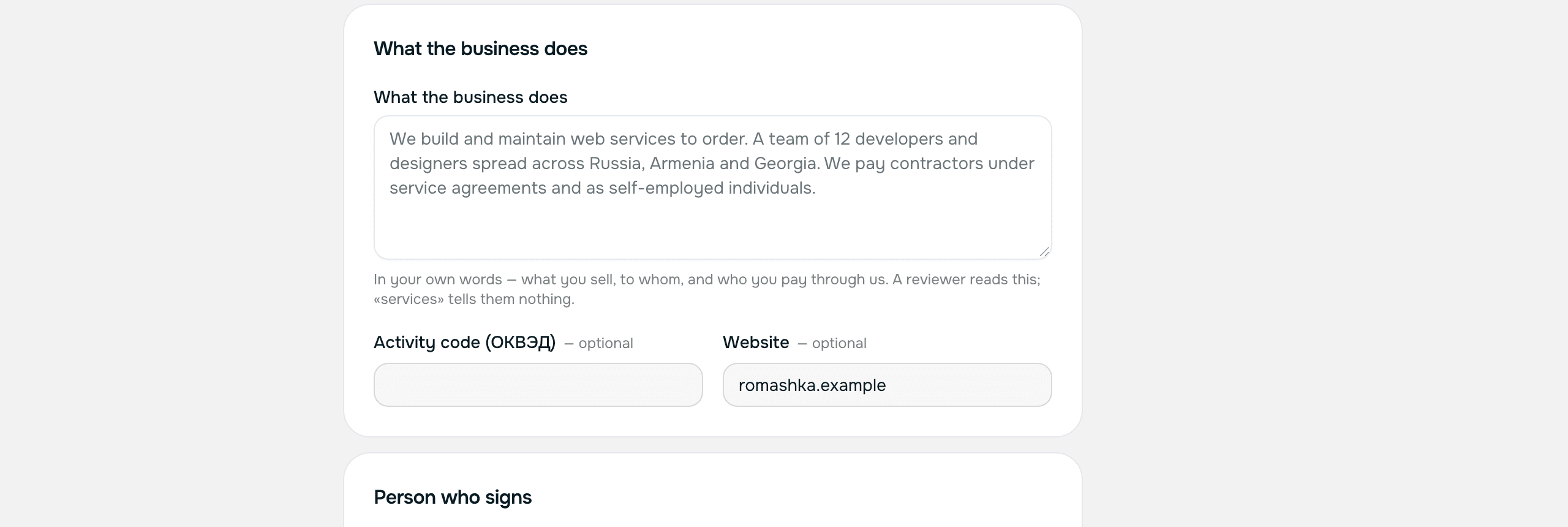
The questionnaire: what the company does — Screenshot of this screen Step 03
Verify the signatory's identity
Where: payroll.teleport.ltd/account/kyb
- What you do
- Press “Verify identity”. A Veriff tab opens: photograph your ID document and your face. Two minutes.
- What happens on our side
- The decision reaches us from Veriff and appears in your account. Usually within minutes, sometimes up to a day when it is reviewed by hand.
What this unlocks. Together with an approved questionnaire, this opens the account in full.
Worth knowing. The person to verify is the one who signs the contract, and that is not always the person who created the account. If your director is someone else, tell your manager: we will issue a link you can send them directly — they do not need an account to use it.
Important. The document is handled by Veriff, our identity-verification provider. We keep the result and the document type. We do not keep the photographs.
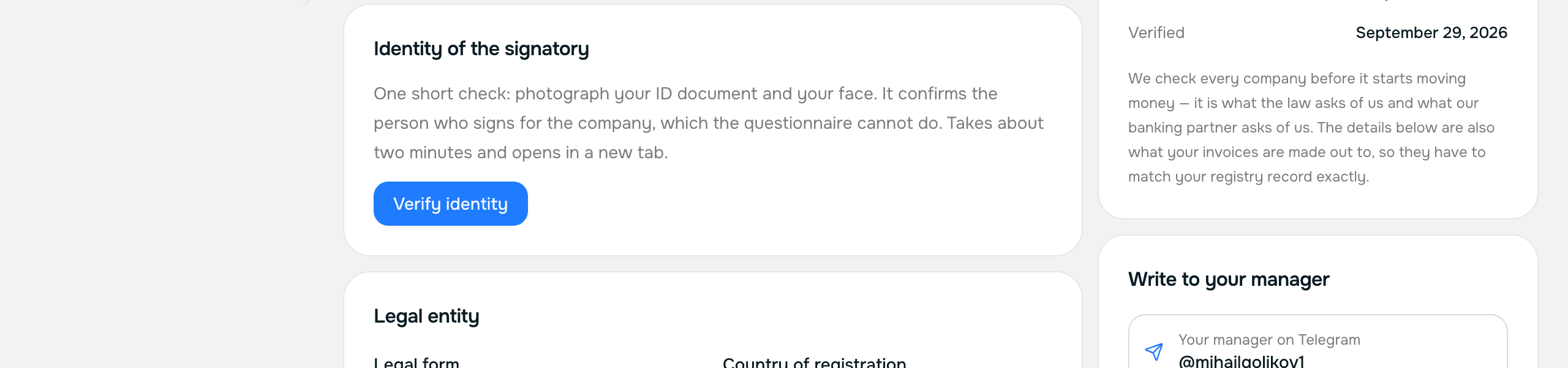
The “Identity of the signatory” panel — Screenshot of this screen Step 04
Account opens, manager gets in touch
- What you do
- Nothing. The decision arrives by email on its own.
- What happens on our side
- We approve the questionnaire, the account becomes active, and a named manager is assigned to you — their contacts are in the right-hand column of every screen.
What this unlocks. The contract. We draft it around your case: recipient countries, currencies, volumes.
Worth knowing. If we need something added, the email says exactly what — the same text you will see above the questionnaire in your account. Add it and submit again; nothing has to be filled in twice.
Step 05
Contract: receive, sign, upload
Where: payroll.teleport.ltd/account/contracts
- What you do
- A panel at the top of the Documents page holds the contract waiting for your signature. Download it, sign it, upload the signed copy back through the same panel.
- What happens on our side
- We check the signature and countersign. The document becomes a live contract.
What this unlocks. A live contract is what allows the balance to be funded. Without one an invoice can be raised but money cannot be credited.
Worth knowing. There are no fields in that panel, only a file picker. The title, the contract and the counterparty are copied from the original, so a signed copy cannot disagree with what we sent you.
Important. The signature on the copy you upload must belong to the person named as signatory in the questionnaire. A mismatch is not a refusal, but we will ask.
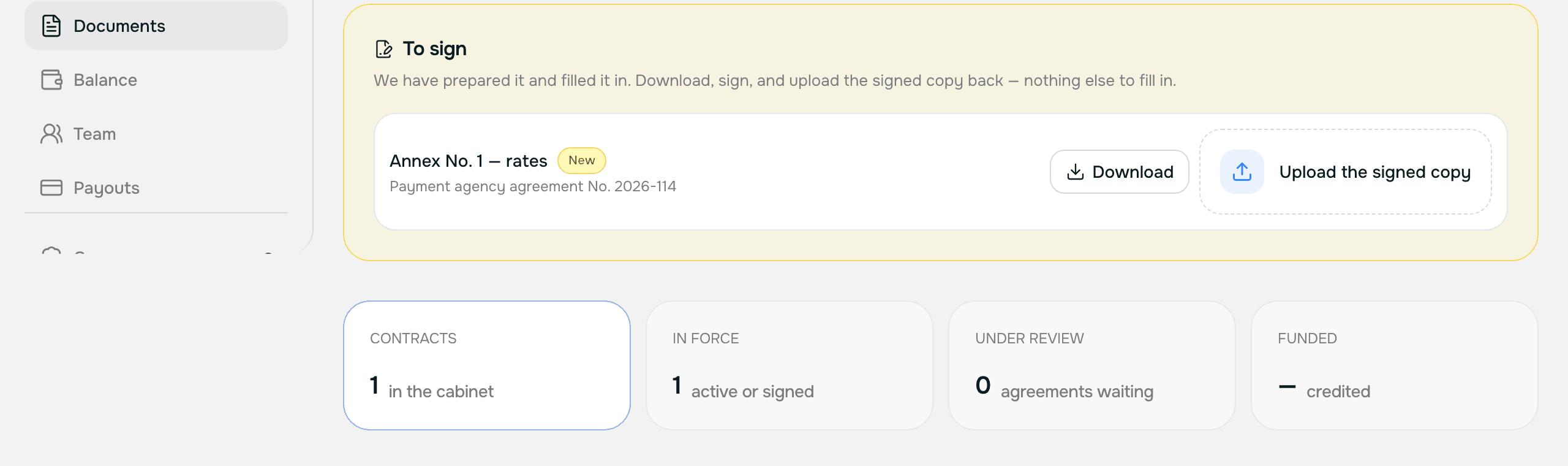
The “Awaiting signature” panel — Screenshot of this screen Step 06
Request an invoice
Where: payroll.teleport.ltd/account/balance
- What you do
- “Request invoice”, above the invoice table. Give the amount, the currency, and who the request goes to.
- What happens on our side
- The request reaches the payment partner. They raise the invoice, attach the file and assign a number — the row changes from “number pending” to a real invoice with a document.
What this unlocks. Payment against the details on the invoice.
Worth knowing. The table shows the full figure to transfer — the amount plus the commission, because the commission is charged on top rather than withheld from the amount. The breakdown sits underneath.
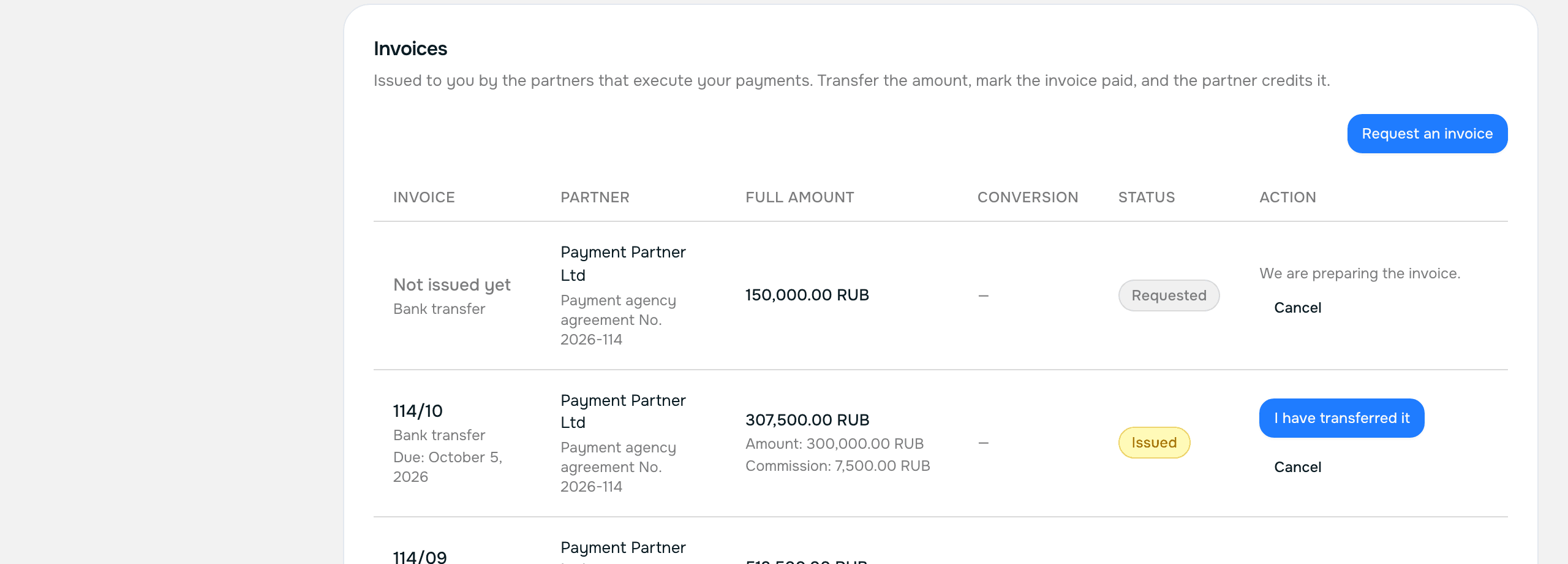
Requesting an invoice, and the invoice table — Screenshot of this screen Step 07
Pay the invoice
Where: payroll.teleport.ltd/account/balance
- What you do
- Transfer the money using the details on the invoice, by whichever method it names. Then press “Mark as paid” on that invoice row.
- What happens on our side
- We see that you have transferred and wait for the money to land. Once it does, the partner credits the invoice and the amount appears on your balance, in the currency and at the rate recorded on the row.
What this unlocks. The balance is funded. Payouts can be filed.
Important. “Mark as paid” is a claim, not a settlement. It says “transferred, over to you” and moves no money by itself: only the side that received it can credit it.
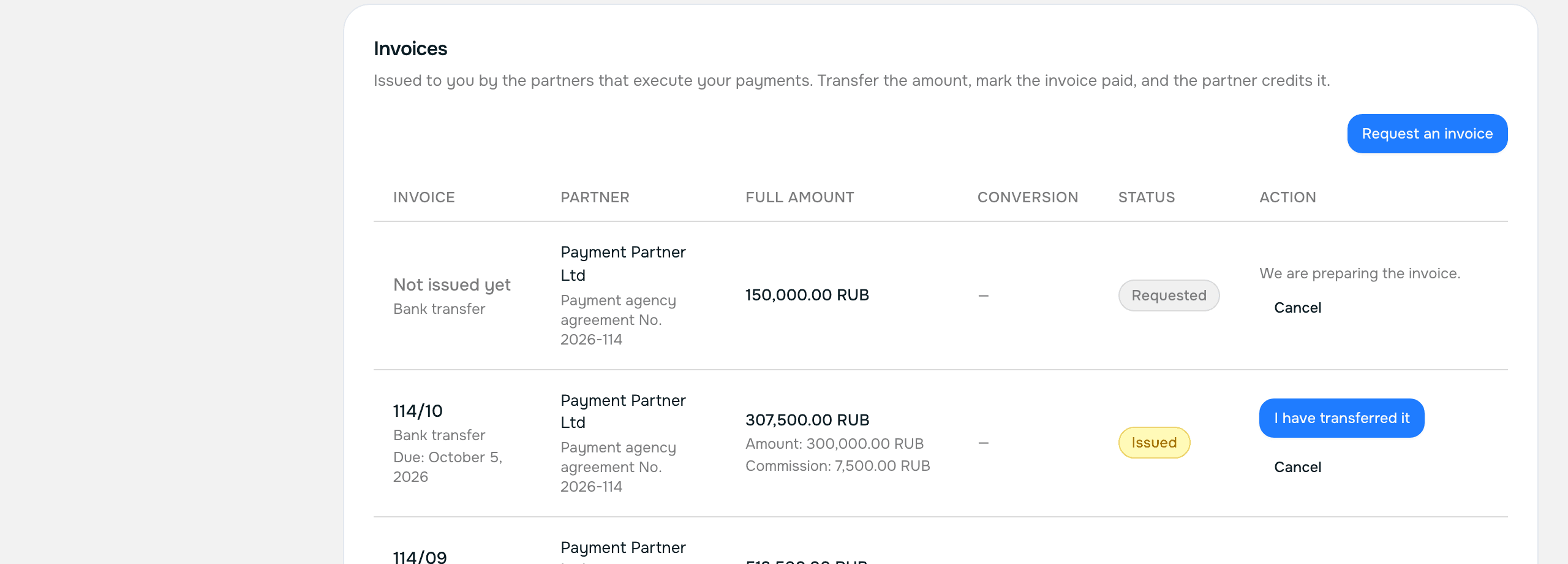
Marking an invoice paid — Screenshot of this screen Step 08
Invite someone
Where: payroll.teleport.ltd/account/team
- What you do
- “Add a team member” — name, email, engagement type, country. The invitation goes out by email with a link; you pick the language of that email right there.
- What happens on our side
- We create their record and send the link. Sending it again revokes the previous one — exactly one link is ever live.
What this unlocks. They follow the link, set a password, verify their identity and add their payment details. Their path is in the recipient guide.
Worth knowing. The link expires. If they did not get to it in time, send the invitation again from their row in the table.
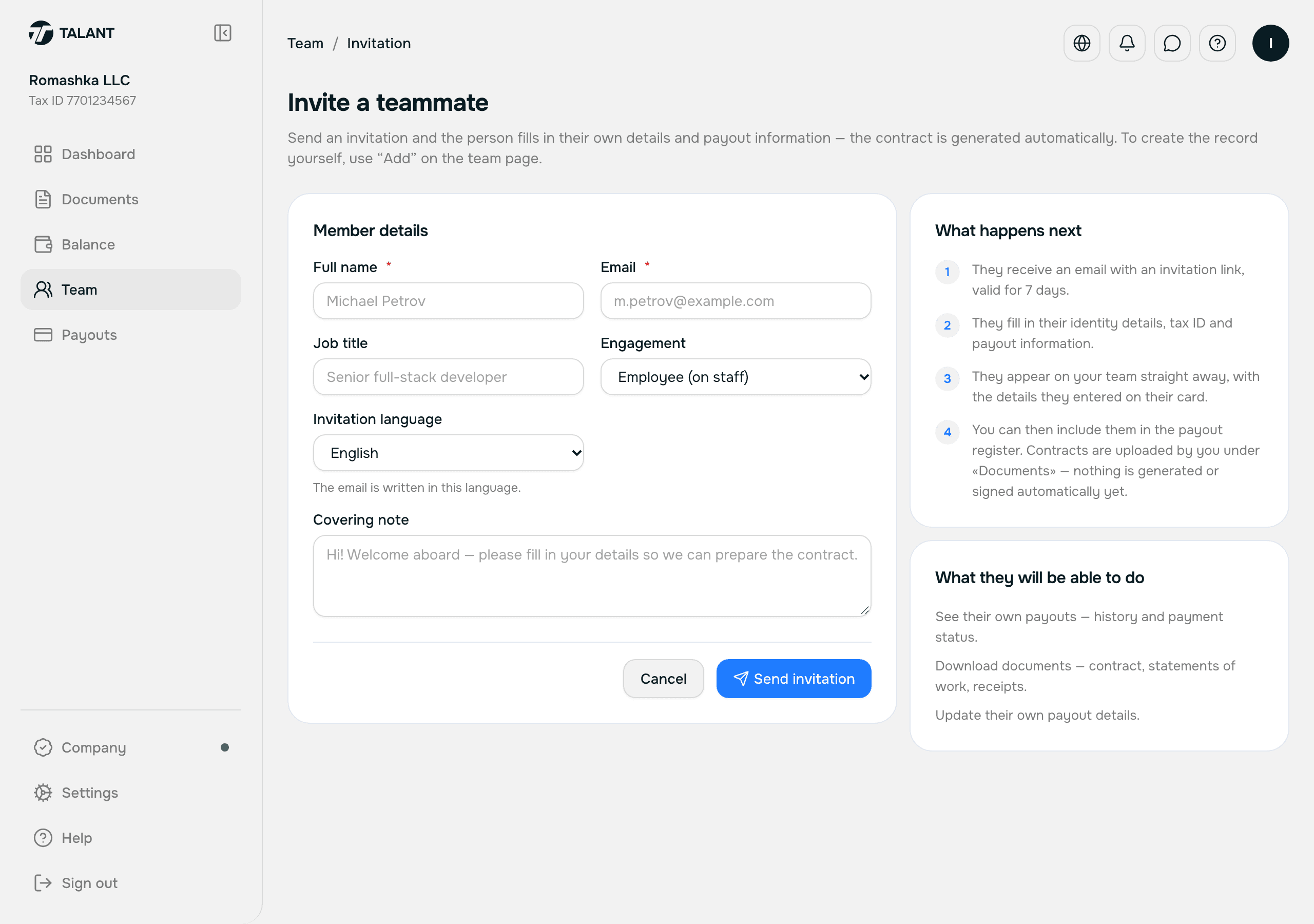
Inviting a team member — Screenshot of this screen Step 09
File a payout
Where: payroll.teleport.ltd/account/payments
- What you do
- Tick who is being paid in the register and press “File payout”. One-off payouts work too — a specific amount to a specific account.
- What happens on our side
- We record the payouts and hand the register to the payment partner for settlement. The status of every row is visible to you and to the recipient.
Worth knowing. Somebody without a verified identity or without payment details still appears in the register, and their card says so. Paying them is technically possible — that is your call, not the system's.
Important. The register records the intention to pay. Money leaves when a manager executes the payout: our payment licence is in progress and settlement runs through a partner. Usually one to two business days, though it depends on the country and the method — the dashboard says the same thing underneath the register.
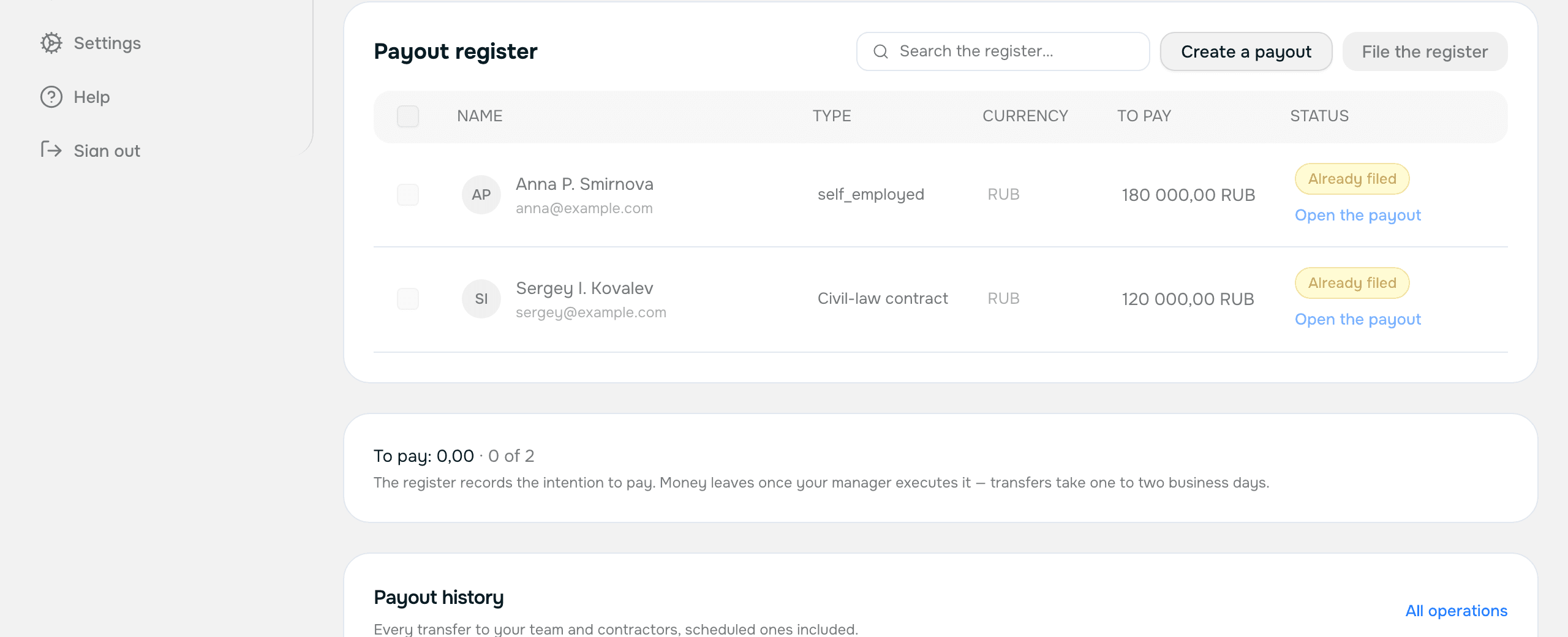
The payout register — Screenshot of this screen Step 10
Reporting documents
Where: payroll.teleport.ltd/account/contracts
- What you do
- Open a contract. The documents inside are grouped into folders: the agreement, acts, invoices, annexes. You can file your own document from there too.
- What happens on our side
- Acts and closing documents for completed payouts go into the “Acts” folder of the contract they belong to.
Worth knowing. A team member sees the documents that name them, and does not see your contract with us — it holds your banking details, and it is not theirs.
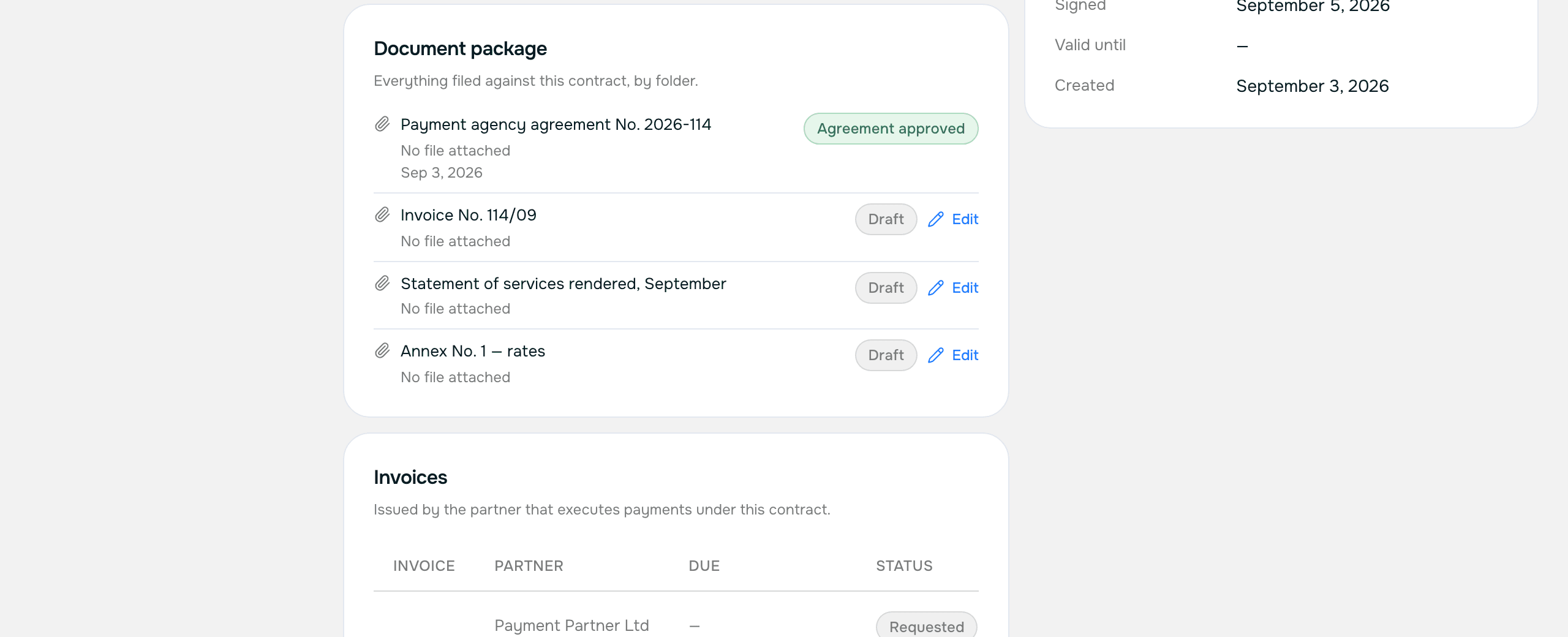
Folders inside a contract — Screenshot of this screen
Stuck?
Message your manager on Telegram — @mihailgolikov1 — or write to [email protected]. The same contacts sit in the right-hand column of every screen in your account.